
Devices Tycoon GPU Editor: Graphics Card Design Guide
Explore the Devices Tycoon gpu editor, compare laptop graphics options, and learn how GPU cores, memory, cooling, and production costs shape your designs.
Jump to
What Does the Devices Tycoon GPU Editor Do?
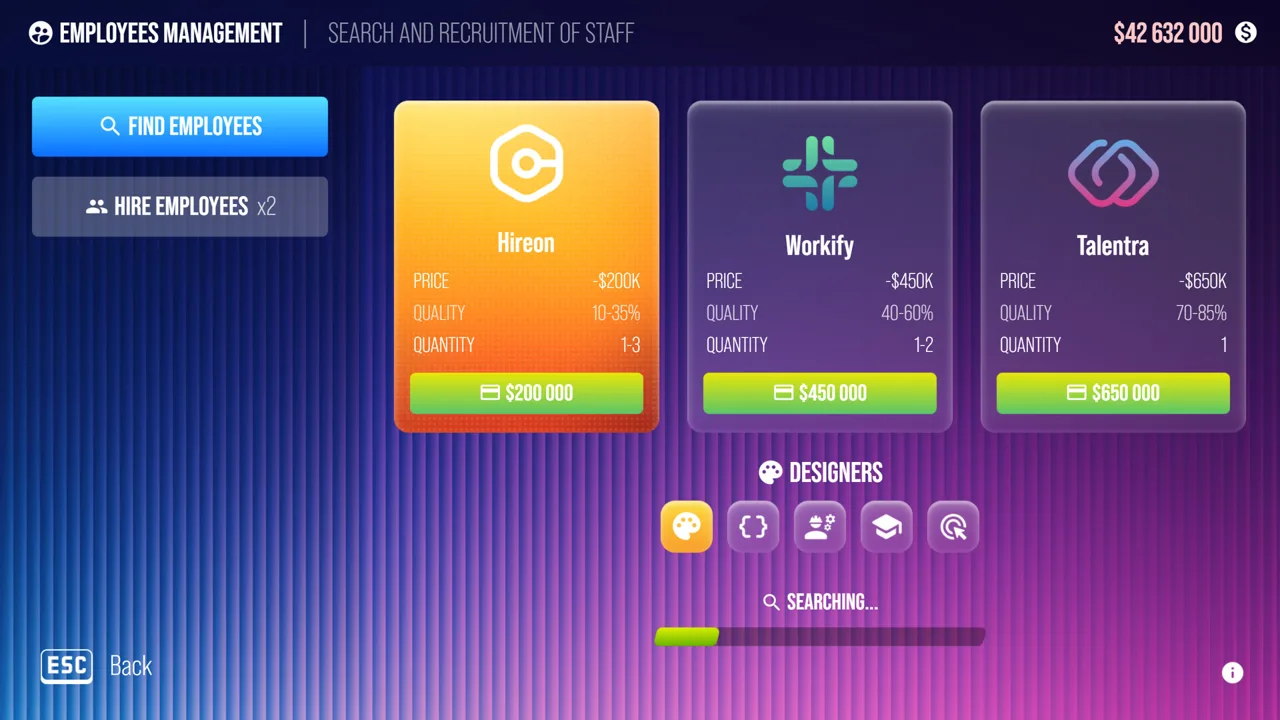
The Devices Tycoon gpu editor puts graphics hardware at the center of your next product, from a phone’s integrated graphics to a graphics card with its own visual identity. Those choices matter because custom hardware raises production costs, directly affecting device pricing and profit margins. On PC, the Devices Tycoon gpu editor covers both graphics selection inside devices and a separate editor for creating your own GPUs.
That distinction helps you decide where to focus. When designing a smartphone, tablet, or laptop, you choose the graphics hardware that goes into the product. When creating a graphics card, you work on its appearance, GPU core, video memory, architecture, power consumption, and cooling.
Start by deciding what you want to build. A laptop using a manufacturer’s graphics hardware presents a different set of choices from a graphics card carrying your company’s own design.
Keep the product’s purpose in view throughout the process. Use the editor’s flexibility to develop a coherent device, and check what each customization adds to its production cost before committing to a more expensive configuration.
Choose Graphics Hardware for Your Device
The device editor connects your processor choice with your graphics options. Processors commonly include an integrated GPU, and Devices Tycoon lets you retain the manufacturer’s integrated graphics or customize them.
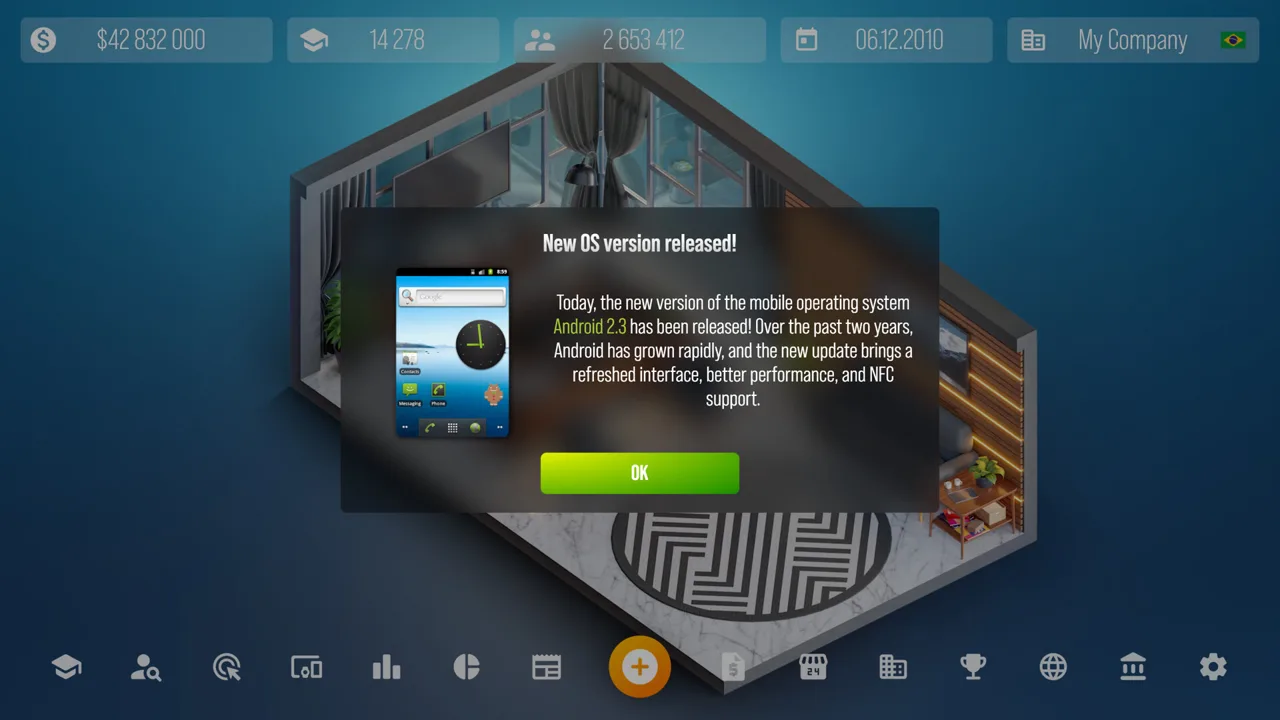 Image: Steam / Roastery Games
Smartphones and tablets have two graphics choices: Manufacturer iGPU and Custom iGPU. Laptops expand that selection to include discrete graphics and GPUs you create separately.
| Graphics option | Smartphones and tablets | Laptops |
|---|---|---|
| Manufacturer iGPU | Available | Available |
| Custom iGPU | Available | Available |
| Manufacturer dGPU | — | Available |
| Custom dGPU | — | Available |
| Your own GPU from the separate editor | — | Available |
An iGPU is integrated graphics; a dGPU is a discrete graphics card. Remember those terms when comparing laptop configurations, because the laptop editor includes both categories.
The Devices Tycoon gpu editor therefore gives laptop projects more graphics choices than mobile device projects. You can retain manufacturer hardware, customize integrated or discrete graphics, or use your own GPU created in the separate editor.
Keep CPU and GPU Decisions Connected
The CPU side offers Manufacturer CPU, Custom Manufacturer CPU, and Your Own CPU. Customizing a manufacturer’s processor costs more and gives you greater control over its parameters.
Plan the CPU and graphics configuration together. If you customize both, review the combined production cost before deciding on the device’s price. Avoid evaluating each upgrade in isolation when both contribute to the same product.
Real History Mode includes real CPUs and GPUs with specifications spanning 2006 through 2025. The combined processor collection for smartphones, tablets, and laptops exceeds 3,000 models.
Use that range to compare hardware within your device concept. For laptops, inspect the internal component layout as well: the editor visually displays the components you use or modify, helping you keep track of the hardware behind the finished design.
Create a Graphics Card’s Look and Specifications
The separate graphics card editor combines exterior design with technical configuration. You can give the card a recognizable appearance while controlling the hardware that determines its performance and production cost.
 Image: Steam / Roastery Games
The Devices Tycoon gpu editor includes graphics card designs with one, two, or three fans, along with casing, color, and lighting customization.
| Design element | Available customization |
|---|---|
| Fan layout | Designs with one, two, or three fans |
| Casing | A selection of graphics card casing designs |
| Colors and lighting | Customizable colors and lighting elements |
Choose a visual direction for your card before refining the details. Keep a consistent color scheme across related models if you want your company’s products to share a recognizable style.
Handle appearance and technical cooling as separate decisions. The editor includes both exterior fan designs and cooling-system parameters, so review each part of the configuration.
GPU Core, Memory, and Architecture
The technical side of the Devices Tycoon gpu editor gives you several connected areas to manage.
| Technical area | What it controls |
|---|---|
| GPU core | Specifications that largely determine performance, computing power, and power consumption |
| Video memory | Parameters affecting performance, bandwidth, and production cost |
| Architecture | Base architecture and standards including DirectX, OpenGL, and PCIe |
| Power consumption and cooling | Parameters for balancing energy use, performance, and stable operation |
The GPU core has a major role in the card’s capabilities. Choose its specifications around the type of product you intend to create, using the technologies available to your company.
Then review video memory. Memory configuration contributes to graphics performance, but it also affects bandwidth and manufacturing expense. Compare those factors together before increasing the specification.
For architecture, pay attention to the base architecture and supported standards. DirectX, OpenGL, and PCIe are part of the available configuration, and technological progress gradually opens additional possibilities for future GPU generations.
Build around the technologies currently available to you. Revisit the architecture when planning a later generation rather than assuming every generation should use an identical configuration.
Balance Power and Cooling
Power consumption and cooling belong in the same design review as the GPU core. The editor lets you adjust these parameters to balance energy efficiency, high performance, and stable operation.
Review cooling whenever you revise the card’s performance or power settings. Keep the whole configuration in view instead of finishing the core, memory, and architecture while leaving cooling as an afterthought.
For a budget graphics card, keep production expense central to your decisions. For a powerful gaming card or technological flagship, give performance more attention while continuing to track the cost of the complete design.
Manage Customization Costs and Profit Margins
Custom hardware changes increase production costs. That makes the Devices Tycoon gpu editor a business tool as much as a hardware design tool: every specification belongs inside a product that your company must price and sell.
 Image: Steam / Roastery Games
Set a product direction before adding custom features. Decide whether you are developing a budget model, a gaming graphics card, or a flagship, then review each change against that direction.
For example, when comparing a laptop with Manufacturer iGPU against one with Custom iGPU, examine the added production expense alongside the configuration changes. Apply the same discipline when considering a manufacturer’s discrete GPU, a custom discrete GPU, or your own design.
Separate the questions you are trying to answer:
- What graphics hardware does this device use?
- Which parts of that hardware are you customizing?
- How does the customization change production cost?
- What does that cost mean for the intended selling price and margin?
These questions keep the graphics decision connected to the business simulation. A more elaborate configuration still needs a price that supports the product you are trying to sell.
Compare Changes Deliberately
Change one major area at a time when experimenting. Compare a memory revision against the previous design before also changing the core, architecture, and cooling. This keeps your comparisons focused on the decision you are evaluating.
Use the company’s income and expense breakdown when reviewing financial results. Updates 1.2 and 1.3 expanded company statistics, giving you more detail about the money entering and leaving the business.
Keep those company figures separate from your design comparisons. Company totals describe the wider business, while the editor’s production costs help you assess the hardware configuration itself.
Update 1.1 also slightly improved GPU profitability. Use the current balance when judging your graphics business, and keep checking costs even after a profitability adjustment.
Use Sandbox and Recent Updates to Refine Designs
Sandbox Mode gives you room to explore the Devices Tycoon gpu editor without financial limits. It is available from the start, and the first post-launch update added unlimited money.
Use Sandbox to compare graphics designs before taking a costly idea into a financially constrained company. Try different memory configurations, architecture choices, and power-and-cooling combinations while keeping a clear record of what you change.
Update 1.2 added a “Research All” button to each research category in Sandbox. Use it when you want to explore researched technologies and examine the choices available for later GPU designs.
| Update | Relevant change |
|---|---|
| First post-launch update | Added unlimited money in Sandbox Mode |
| Update 1.1 | Made Sandbox available from the start and slightly improved GPU profitability |
| Update 1.2 | Added “Research All” per Sandbox research category and fixed GPU lighting in “My Devices” |
| Update 1.3 | Added more detailed company income and expense information |
Carry Useful Settings Into Later Models
Update 1.1 introduced the ability to copy settings from previous device models. It also stopped device settings from resetting when switching between Budget, Standard, and Flagship.
Use copied device settings as a starting point for a related model, then review the graphics configuration for that new product. Retaining a previous setup saves repeated configuration, but the next model still deserves its own cost and hardware review.
The Budget, Standard, and Flagship setting fix also makes comparisons easier to manage. Review the retained settings as you switch categories, especially when you are developing related devices with different graphics configurations.
For visual checks, Update 1.2 fixed GPU lighting displaying incorrectly in “My Devices.” Check your finished card there when reviewing its appearance.
Keep experimentation focused: choose a product goal, compare the relevant hardware options, inspect production cost, and refine the design. You can get Devices Tycoon on Steam to build devices and develop your company’s graphics hardware.
FAQ
What can you customize in the Devices Tycoon gpu editor?
The separate graphics card editor covers casing, colors, lighting, and designs with one, two, or three fans. Technical configuration includes the GPU core, video memory, architecture, supported standards, power consumption, and cooling.
Can laptops use a GPU you created yourself?
Yes. Laptop graphics options include Manufacturer iGPU, Custom iGPU, Manufacturer dGPU, Custom dGPU, and your own GPU created in the separate editor. Smartphones and tablets have Manufacturer iGPU and Custom iGPU options.
Does custom graphics hardware increase production costs?
Yes. Custom hardware changes increase production costs, affecting device pricing and profit margins. Review the cost of the complete configuration when combining custom graphics with other hardware changes.
Can you experiment with GPU designs in Sandbox Mode?
Yes. Sandbox is available from the start and includes unlimited money. Update 1.2 also added “Research All” to each Sandbox research category, letting you explore researched technologies while developing graphics designs.
Continue with
 Devices Tycoon Keyboard Editor: Design Your Own GearExplore the Devices Tycoon keyboard editor, customize keys and switches, add lighting and accessories, and plan your next keyboard design in Sandbox Mode.
More in Editors
Devices Tycoon CPU Editor: Build and Balance Your Chip
Master the Devices Tycoon CPU editor with a guide to processor types, graphics, memory, cooling, and licenses. Plan custom chips for cost and performance.
Devices Tycoon Mobile OS Editor: Design & Test Guide
Explore the Devices Tycoon mobile os editor, customize apps and lock screens, test working features, and learn which updates fix OS design resets on PC.

Devices Tycoon TV OS Editor: Design Your Smart TV OS
Explore the Devices Tycoon TV OS editor, customize menus and built-in apps, balance visual effects with performance, and learn which updates fix OS resets.

Devices Tycoon Watch OS Editor: Customization Guide
Explore the Devices Tycoon watch os editor, customize faces and apps, test your smartwatch interface, and learn which updates fix OS design reset issues.
Join the community
Game links and player communities: