
Devices Tycoon Keyboard Editor: Design Your Own Gear
Explore the Devices Tycoon keyboard editor, customize keys and switches, add lighting and accessories, and plan your next keyboard design in Sandbox Mode.
Jump to
What Can You Customize in the Keyboard Editor?
Build a keyboard with its own identity using the Devices Tycoon keyboard editor, from individual key designs to the accessories inside the box. Those choices give you room to develop a recognizable product alongside the rest of your company's devices. In the Steam PC version, the Devices Tycoon keyboard editor includes case customization, key templates, custom key designs, switch selection, connector design, and additional functions.
The keyboard editor reaches beyond the board itself. You can also include accessories and customize a keyboard pad, giving the finished package a consistent look. Start with a clear concept—gaming, everyday use, or office work—then carry that idea through the design.
| Customization area | Available choices |
|---|---|
| Keyboard case | Edit the case design |
| Individual keys | Choose key styles from templates or create custom designs |
| Switches | Select from hundreds with different designs and characteristics |
| Connector | Edit its design |
| Additional functions | Include macros, night mode, and adaptive backlighting |
| Package | Add a keyboard mat, key clips, or a dust brush |
Think of these as connected design decisions. A case sets the overall appearance, individual keys supply the details, and the package extends that identity beyond the keyboard.
Choose one direction before exploring every option. Write a short concept such as “a restrained office keyboard” or “a gaming keyboard with distinctive keys.” Use that sentence to guide your choices whenever several designs catch your eye. This is a way to organize your creative work; the editor still leaves the final combination to you.
Official page: Devices Tycoon (roasterygames.com)
Shape the Case, Keys, and Connector
The Devices Tycoon keyboard editor lets you work on both the keyboard's overall appearance and the style of each key. That combination gives you two useful starting points: build around a case you like, or develop a key design and make the surrounding keyboard match.
 Image: Steam / Roastery Games
Keep your concept nearby as you work. If the keyboard starts looking like several unrelated ideas, revisit the case and key styles together. Adjusting those elements around the same theme helps you make deliberate choices.
Use Templates to Establish a Direction
Key templates offer a starting point when you want to explore the editor without designing every detail yourself. Choose a style that fits your concept, then review how it looks across the keyboard.
Pay attention to the relationship between neighboring keys. Since each key can have its own style, consider how repeated designs and custom details fit together. Use repetition where you want a consistent appearance, and reserve a different design for the keys you want to emphasize visually.
For an office-themed concept, try keeping the key styling restrained. For a more expressive gaming concept, experiment with a stronger visual theme. These are creative exercises you can build with the available customization options.
Develop a Custom Key Design
Create your own key design when the templates do not match the idea you have in mind. Start with one design concept, then decide how broadly you want to use it.
Keep the following questions in mind:
- Does the custom key style fit the case?
- Do individual details contribute to the same theme?
- Would another template suit part of the design?
- Does the keyboard still match the concept you started with?
Treat the connector as part of that same visual review. Its design is editable, so include it when you assess the finished keyboard. Small details deserve attention once the case and keys have a direction you like.
Choose Switches and Additional Functions
Switch selection is a substantial part of the Devices Tycoon keyboard editor. There are hundreds of switches to choose from, with different appearances and characteristics. The keyboard options accommodate gaming, everyday, and office concepts.
 Image: Steam / Roastery Games
Compare both sides of a switch choice: its design and its characteristics. Read the information presented for each option, then decide whether it fits the keyboard you are trying to create. Keep your product concept specific enough to help you narrow the selection.
| Keyboard element | What you can work with | What to review |
|---|---|---|
| Switches | Hundreds of options with distinct designs and characteristics | Compare the displayed characteristics and appearance |
| Macros | An additional keyboard function | Decide whether macros belong in your product concept |
| Night mode | An additional keyboard function | Review it alongside your other selected functions |
| Adaptive backlighting | An additional keyboard function | Consider it as part of the keyboard's lighting concept |
Compare Switches With a Clear Goal
Pick a direction before browsing the switch selection. “An everyday keyboard with a consistent visual style” gives you a more useful design brief than simply trying to choose from hundreds of options at once.
Review a small selection, compare their displayed details, and settle on the option that fits your intended design. Keep the case and keys in mind while making that decision; the switch design is another part of the keyboard's appearance.
Avoid turning a design preference into a universal rule. Build around the characteristics shown in your game and the concept you want to pursue. Different keyboard projects give you room to explore different combinations.
Give Each Function a Purpose
Macros, night mode, and adaptive backlighting expand your choices beyond the physical design. Decide which functions belong in the product you are creating, then review the whole selection together.
For a gaming-themed project, explore macros and adaptive backlighting as part of the concept. For an office-themed project, review the available functions against the simpler design brief you chose.
Keep these as experiments. A feature list can help define your keyboard, while customer feedback and company finances give you other parts of the business to evaluate after release.
Build a Coordinated Keyboard Package
The Devices Tycoon keyboard editor also gives you choices for what goes into the package. You can add a keyboard mat, key clips, or a dust brush. These accessories let you extend the product concept beyond the board.
The pad has its own customization options, including color, static backlighting, RGB backlighting, and an exclusive design. Give it the same attention you gave the keyboard if you want the package to follow a consistent theme.
| Package element | Available customization or inclusion |
|---|---|
| Keyboard mat or pad | Include it in the package and customize its design |
| Pad color | Choose the color |
| Pad lighting | Choose static backlighting or RGB backlighting |
| Exclusive pad design | Add a distinctive design to the pad |
| Key clips | Include them in the package |
| Dust brush | Include it in the package |
Start by deciding which accessories belong with your keyboard. Then review the pad's color and design alongside the case and keys. For a visually expressive project, explore the pad's lighting choices. For a restrained concept, keep the visual treatment consistent with the keyboard.
Separate the two lighting decisions in your planning: the keyboard offers adaptive backlighting, while the pad offers static and RGB backlighting options. Review each part on its own, then consider how they fit together.
Before finishing, run through a short design checklist:
- Review the case, keys, switches, and connector together.
- Check your selected additional functions.
- Review the accessories included in the package.
- Compare the pad's appearance with the keyboard.
- Revisit any choice that feels disconnected from your original concept.
Use this review to catch unfinished design decisions while the project is still fresh in your mind.
Experiment in Sandbox Mode and Review Your Business
Use Sandbox Mode to explore the Devices Tycoon keyboard editor without financial limits. Sandbox Mode is available from the start following Update 1.1, and the first post-launch update added unlimited money to the mode.
That makes Sandbox a useful place to pursue a keyboard concept in detail. Try a custom key style, explore switch designs, or build a coordinated pad without making money management the focus of the experiment.
Several PC updates also added tools relevant to design iteration and company management:
| Update | Relevant changes |
|---|---|
| First post-launch update | Unlimited money in Sandbox Mode; autosave every 90 in-game days |
| Update 1.1 | Copy settings from previous device models; retain settings when switching between Budget, Standard, and Flagship; Sandbox available from the start |
| Update 1.2 | A “Research All” button in each Sandbox research category; more detailed income and expense statistics |
| Update 1.3 | Further detail for company income and expenses |
Use the model-settings copy feature when developing related products. Carry an existing configuration forward, then focus your attention on the changes you want to explore. Review the resulting model before moving on so the new design reflects your intentions.
Update 1.1 also keeps device settings from resetting when you switch between Budget, Standard, and Flagship. Revisit your selections as you compare those categories and keep track of the concept you are developing.
Keep Creative Experiments Focused
Change one part of your concept at a time when you want to compare designs clearly. Explore a different key style while keeping the surrounding appearance consistent, or revisit the package after settling on the keyboard.
Use a separate experiment for a substantially different idea. A restrained office concept and an expressive gaming concept give you different creative briefs, so develop each around its own choices.
In Sandbox Mode, use the “Research All” button within a research category when you want to explore that category's options. Keep research decisions alongside your broader design plans.
Review Results Alongside the Design
Devices Tycoon connects customer review scores with sales: higher scores improve sales. After releasing devices, read the feedback and review your company's financial information as part of your next round of planning.
Use the detailed income and expense statistics to understand the business around your product work. Keep appearance, functions, customer feedback, and company finances in view as you develop the next model.
The Devices Tycoon keyboard editor gives you plenty of creative choices. Give each keyboard a clear concept, finish the details across the board and package, and use the game's feedback tools to guide what you explore next.
FAQ
What can you customize in the Devices Tycoon keyboard editor?
You can edit the case, individual key styles, switch selection, and connector design. Additional functions include macros, night mode, and adaptive backlighting. Package options include a keyboard mat, key clips, and a dust brush.
Can you design individual keys?
Yes. You can choose styles for individual keys from templates or create key designs yourself. Use those options to develop a consistent theme or add distinctive details.
How many switches can you choose from?
The keyboard editor offers hundreds of switches with different designs and characteristics. Compare their displayed details while planning your keyboard.
Can you experiment with keyboard designs using unlimited money?
Yes. Sandbox Mode includes unlimited money following the first post-launch update. Update 1.1 made Sandbox Mode available from the start, and Update 1.2 added a “Research All” button to each research category within the mode.
Continue with
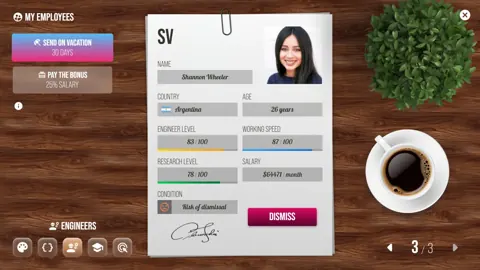 Devices Tycoon Mobile OS Editor: Design & Test GuideExplore the Devices Tycoon mobile os editor, customize apps and lock screens, test working features, and learn which updates fix OS design resets on PC.
More in Editors
Devices Tycoon CPU Editor: Build and Balance Your Chip
Master the Devices Tycoon CPU editor with a guide to processor types, graphics, memory, cooling, and licenses. Plan custom chips for cost and performance.
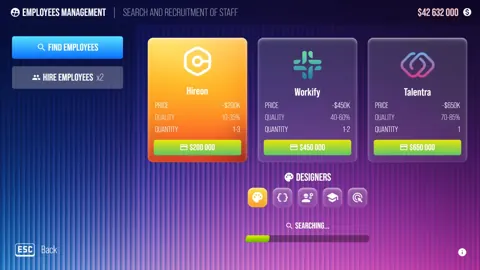
Devices Tycoon GPU Editor: Graphics Card Design Guide
Explore the Devices Tycoon gpu editor, compare laptop graphics options, and learn how GPU cores, memory, cooling, and production costs shape your designs.
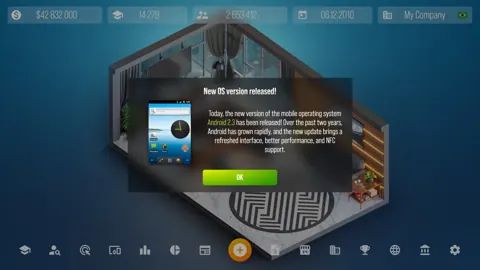
Devices Tycoon TV OS Editor: Design Your Smart TV OS
Explore the Devices Tycoon TV OS editor, customize menus and built-in apps, balance visual effects with performance, and learn which updates fix OS resets.
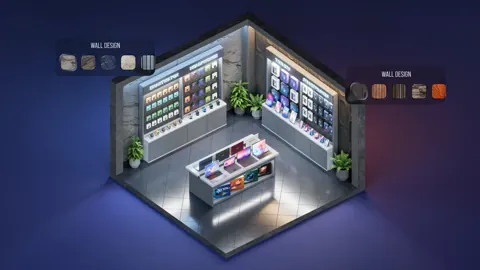
Devices Tycoon Watch OS Editor: Customization Guide
Explore the Devices Tycoon watch os editor, customize faces and apps, test your smartwatch interface, and learn which updates fix OS design reset issues.
Join the community
Game links and player communities: