
Devices Tycoon TV OS Editor: Design Your Smart TV OS
Explore the Devices Tycoon TV OS editor, customize menus and built-in apps, balance visual effects with performance, and learn which updates fix OS resets.
Jump to
What Can You Do With the TV OS Editor?
Build a television that feels like your company's own product with the Devices Tycoon TV OS editor. Your software shapes everything from the startup animation to channel browsing, so designing the interface gives your TV an identity beyond its hardware. The Devices Tycoon TV OS editor lets you customize that experience and use the finished operating system inside the game's simulated TV.
On the Steam PC version, TV operating systems belong to the broader OS creation system alongside smartphone, PC, and smartwatch software. You can design screens, customize built-in applications, and interact with the completed interface after development.
That gives you something concrete to check: how the design works across an entire session. A distinctive startup screen is one piece; profiles, playback controls, settings, and shutdown all contribute to the same experience.
| Part of the TV OS | What you can customize |
|---|---|
| Startup and profiles | Boot logo, loading presentation, profile appearance, and interaction animations |
| Home and navigation | Bottom bar, main menu, element arrangement, styles, and application menu |
| Entertainment | Channel interfaces, media playback, Sports, Music, Radio, and Karaoke |
| System controls | Control Center, volume display, notifications, search, and keyboard |
| Branding and shutdown | Application icons, interface icons, shutdown background, and animations |
Start by choosing an overall visual direction. Carry it through the screens you expect to use regularly, then add detail to individual applications. Treat the finished OS as an interface to navigate, with each screen contributing to the same design.
Build a Consistent Startup and Home Screen
The broader OS development process begins with a name and logo. Your employees develop the base version before you implement design elements and technologies. Use that identity as the starting point for your television interface.
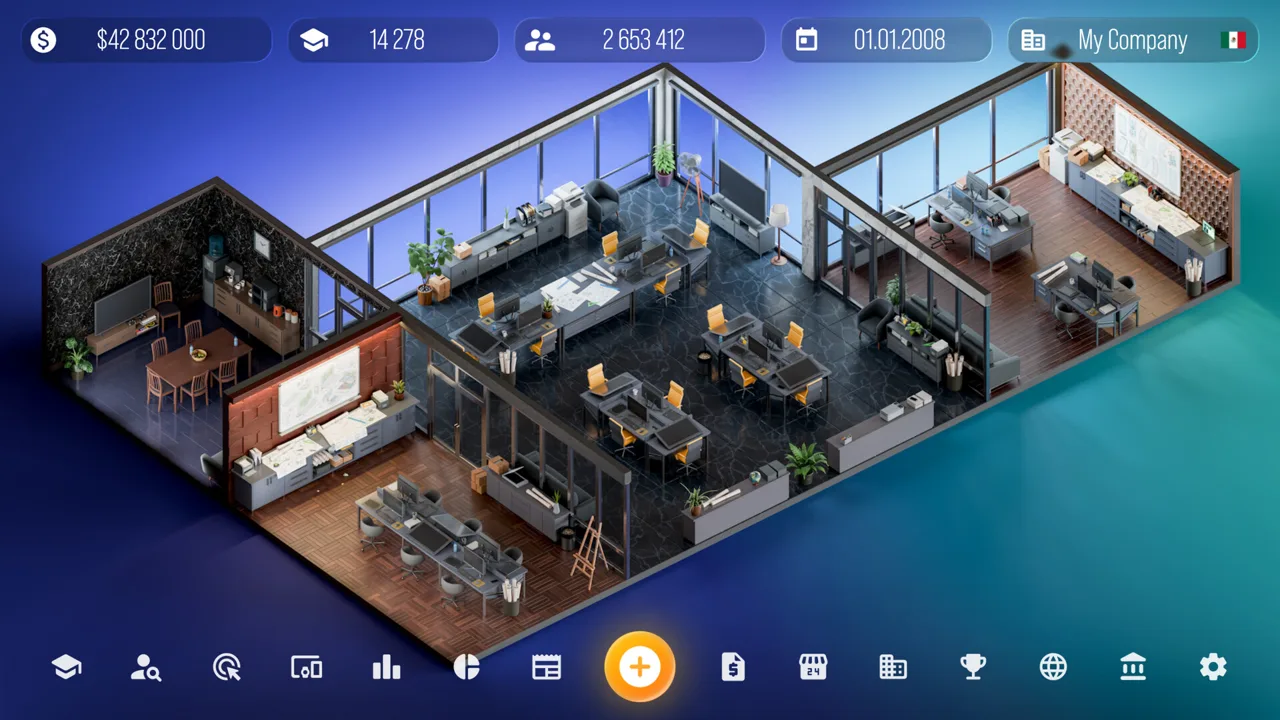 Image: Steam / Roastery Games
The Devices Tycoon TV OS editor gives you control over the opening sequence, profile selection, and home screen. Work through those connected areas together so the transition between them feels deliberate.
Shape the boot sequence
The loading screen supports a custom logo, loading screen type, progress indicator, and animations. This is where your operating system introduces itself before the main interface appears.
Choose a loading presentation that matches the rest of your design. If your menus use restrained effects, keep the boot animation restrained too. If you want a more animated interface, carry a recognizable visual theme from startup into the home screen.
Check the logo and loading indicator together. Give each a clear role so the branding remains readable while the indicator communicates activity.
Make profile selection readable
Profile customization includes the profile design and animations for appearance, hovering, and selection. Those states let you distinguish an available profile from the one currently highlighted or selected.
Keep those states visually separate. Reusing an identical effect everywhere can make your design harder to interpret when you move through the interface.
Test profile selection after adjusting its animations. Watch the transition into the next screen and check whether it fits the startup sequence you just created.
Organize the home screen
You can customize the bottom bar, main menu, layout, styles, and animations. The separate application menu also supports changes to its list, arrangement, and navigation presentation.
Keep related navigation elements visually consistent. Give menu entries recognizable icons and check how selection effects appear against their backgrounds.
Use the completed OS to move between the home screen and application menu. Judge the design through those repeated interactions before spending more time on decorative details.
Customize TV Channels and Entertainment Apps
Entertainment occupies a substantial part of the Devices Tycoon TV OS editor. You can customize television viewing, local media playback, and several dedicated applications, each with its own interface.
 Image: Steam / Roastery Games
Keep a shared visual identity across these areas while allowing their controls to serve different purposes. Channel browsing needs an understandable list; media playback needs controls you can recognize over the viewing window.
| Application or feature | Editable elements |
|---|---|
| TV channels | Channel list, switching menu, viewing window, and other interface elements |
| Media Settings | Media player design, presentation styles, and visual filters for channels and applications |
| Media player | Application appearance, playback window, controls, and other components |
| Sports | Interface appearance, styles, and individual element animations |
| Music | Detailed customization of the music player's interface |
| Radio | Application appearance, styles, animations, and interface elements |
| Karaoke | A dedicated interface editor with extensive customization options |
Connect channel browsing with playback
Channel customization covers both choosing content and viewing it. Design the channel list and switching menu together, then check how they look alongside the viewing window.
Keep the current selection easy to distinguish. Use the same visual language for selection across channel browsing and the main application menu, so the interface remains familiar as you move around.
Media Settings adds control over presentation styles and visual filters. Preview those choices alongside your interface elements. Check whether text, icons, and playback controls remain readable with the selected presentation.
Give each entertainment app attention
The Sports application brings sports channels and broadcasts into a dedicated interface. Music and Radio have separate players, while Karaoke has its own detailed design controls.
Carry recognizable styles and icon choices between these applications. Review their individual screens as well: a design that reads clearly in a channel list deserves another check around music controls or a Karaoke interface.
The media player supports customization of its playback window and controls for photos and videos stored within the simulated TV environment. Inspect both the surrounding application and the playback view. Make sure the controls feel like part of the same OS when you move between them.
The Devices Tycoon TV OS editor rewards this kind of careful design work with an interface you can actually explore. Open the applications after development and judge how their screens connect.
Make Everyday Controls Easy to Read
Small interface elements appear throughout a TV session. Volume changes, notifications, searches, and quick controls deserve the same attention as the home screen.
 Image: Steam / Roastery Games
Use the Devices Tycoon TV OS editor to give these elements a consistent appearance. Check them in context, especially when they appear alongside entertainment screens.
| System feature | Customization available |
|---|---|
| Control Center | Overall design, button arrangement, styles, animations, and interface elements |
| Volume and notifications | Placement, visual styles, and animations |
| Search and keyboard | Search interface appearance and on-screen keyboard design |
| Voice assistant | Assistant design and interface |
| App Store | Overall appearance and detailed interface design |
| Settings | Settings application design, with parameters that affect simulated TV operation |
Control Center provides quick access to the TV's main functions. Arrange its buttons clearly and keep their visual treatment consistent with your main navigation.
Volume panels and toast notifications support changes to location, style, and animation. Check their placement against the viewing window. Keep the message or volume state readable without letting the surrounding effect dominate the screen.
Search and the on-screen keyboard form another connected pair. Customize them together, then inspect the transition between entering text and viewing the search interface. Keep lettering and selection states easy to distinguish.
The voice assistant has its own editable interface. Match its appearance to the wider OS so it feels connected to the controls around it.
Give the App Store the same treatment. Its design can be changed from the overall style down to individual interface details, making it another substantial part of your software's identity.
Settings also deserves a functional check. Some parameters affect how the simulated television operates. After changing them, use the OS and inspect the resulting behavior.
Finish with icons and shutdown. You can choose icons for almost every application and most interface elements, then customize the shutdown window's background, design, and animations. Carry your branding through that final screen.
Balance Performance and Keep Your Design Intact
Visual complexity has a resource cost in the OS design system. More elaborate animations and styles require more system resources, and performance can be monitored on the main screen.
Build the Devices Tycoon TV OS editor design around that tradeoff. Add effects deliberately, then review the performance information while refining the interface.
Try this design review sequence:
- Establish the home screen layout and application navigation.
- Apply consistent icons and interaction styles.
- Add animations to selected elements.
- Check the performance display as the design becomes more elaborate.
- Use the completed OS to inspect startup, applications, controls, settings, and shutdown.
This is a suggested review order rather than an unlock sequence. It keeps your attention on connected parts of the interface and gives you clear opportunities to inspect your changes.
Sandbox Mode also provides room to experiment. It is available from the start following Update 1.1, and the first post-launch update added unlimited money in that mode. Update 1.2 added a “Research All” button to each research category and an “Employees Are Always Happy” toggle.
Use those options when you want to focus on experimenting with designs and the wider company systems.
| Update | Change relevant to OS design sessions |
|---|---|
| First post-launch update | Added unlimited money in Sandbox Mode and autosaving every 90 in-game days |
| Update 1.1 | Made Sandbox Mode available immediately and fixed OS designs resetting after restarting |
| Update 1.2 | Added Sandbox research controls and fixed text in “My OS” licensing |
| Update 1.3 | Fixed an additional issue that could unexpectedly reset custom OS design settings |
Update 1.3 matters if you previously encountered disappearing customization. It addresses another reset issue after the restart-related fix in Update 1.1. Update your Steam installation before returning to a design affected by those problems.
Treat software development as an ongoing part of your company, too. OS updates can attract fans and generate additional revenue. Keep refining your interface as you develop the business, using the functioning OS to inspect the changes.
If you're starting on PC, get the game through the Devices Tycoon Steam page.
FAQ
What can I customize in the Devices Tycoon TV OS editor?
You can customize startup, profiles, the home screen, menus, television channels, entertainment applications, Control Center, search, the keyboard, notifications, settings, icons, and shutdown. Many areas include separate style and animation options.
Can I use the TV operating system after creating it?
Yes. After development, you can launch the operating system inside the game and interact with its interface, built-in applications, and system functions. That lets you inspect the finished experience beyond its editor screens.
Do animations affect OS performance?
Yes. More complex animations and visual styles consume more system resources. Monitor the performance information on the main screen while adjusting the design, and review the effects you add.
Which update fixes custom OS designs resetting?
Update 1.1 fixed OS designs resetting after restarting the game. Update 1.3 addressed an additional issue that could unexpectedly reset custom OS design settings. Keep your Steam version updated before continuing an affected design.
Continue with
 Devices Tycoon Watch OS Editor: Customization GuideExplore the Devices Tycoon watch os editor, customize faces and apps, test your smartwatch interface, and learn which updates fix OS design reset issues.
More in Editors
Devices Tycoon CPU Editor: Build and Balance Your Chip
Master the Devices Tycoon CPU editor with a guide to processor types, graphics, memory, cooling, and licenses. Plan custom chips for cost and performance.
Devices Tycoon GPU Editor: Graphics Card Design Guide
Explore the Devices Tycoon gpu editor, compare laptop graphics options, and learn how GPU cores, memory, cooling, and production costs shape your designs.
Devices Tycoon Keyboard Editor: Design Your Own Gear
Explore the Devices Tycoon keyboard editor, customize keys and switches, add lighting and accessories, and plan your next keyboard design in Sandbox Mode.
Devices Tycoon Mobile OS Editor: Design & Test Guide
Explore the Devices Tycoon mobile os editor, customize apps and lock screens, test working features, and learn which updates fix OS design resets on PC.
Join the community
Game links and player communities: