
Devices Tycoon Bugs: Black Screen, Saves, and Fixes
Fix Devices Tycoon bugs with fullscreen workarounds, save error checks, and a breakdown of the device editor and OS issues addressed in updates 1.1–1.3.
Jump to
Which Devices Tycoon Bugs Have Been Fixed?
Devices Tycoon bugs can interrupt a company you’ve spent hours building, especially when fullscreen goes black or an OS design resets. Knowing which Devices Tycoon bugs have already been addressed helps you choose between updating, changing a display setting, and recording a recurring problem. On the Windows Steam version, updates 1.1 through 1.3 address several saving, statistics, localization, and device editor issues, while fullscreen black screens have separate troubleshooting steps.
Start by updating the game before changing your device designs or company setup. Several problems that look like mistakes in your configuration have specific fixes attached to these versions.
| Update | Issues addressed | Other relevant changes |
|---|---|---|
| First post-launch update | Added automatic saving | Autosave runs every 90 in-game days |
| 1.1 | Incorrect text after saving or loading; OS designs resetting after restart; rankings, statistics, and fan counts failing to update; cameras moving outside the editor | Save error codes, persistent device settings when changing tiers, and Sandbox Mode available from the start |
| 1.2 | Incorrect decimal displays, Private OS NaN%, inaccurate earbud reviews, GPU lighting, localization, and map display problems | More detailed income and expense statistics |
| 1.3 | Unexpected custom OS design resets, missing marketing selections, misplaced visual effects and adapters, and incorrect device text | Additional financial detail and more Sandbox Mode customization |
OS design resets deserve particular attention: version 1.1 addressed resets after restarting, and version 1.3 addressed another issue involving unexpected design resets. If that is your problem, update through 1.3 before spending time rebuilding the same design.
Keep your troubleshooting focused on the affected feature. A fullscreen display problem calls for different steps than a name that changes after loading.
Official page: Devices Tycoon (roasterygames.com)
How to Troubleshoot a Fullscreen Black Screen
A black screen can leave you unable to reach the business simulation at all. For NVIDIA systems, the fullscreen issue has been associated with G-Sync, and the available workarounds include changing the game’s refresh behavior or using Windowed mode.
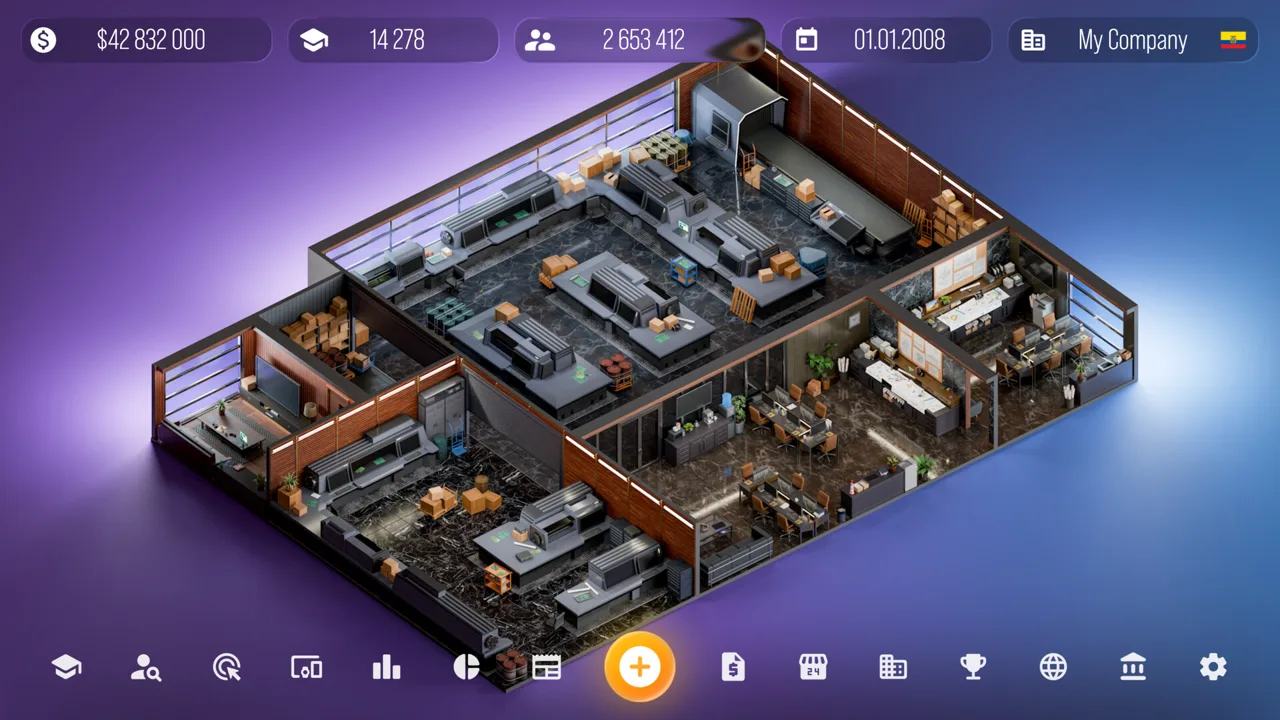 Image: Steam / Roastery Games
Start with the display workarounds below. Change one setting at a time so you can tell which adjustment affects the problem.
| Workaround | What to do |
|---|---|
| Restore the fullscreen picture | Press Alt+Tab twice after the game switches to fullscreen |
| Use Windowed mode | Open Settings → Video and select Windowed mode |
| Set a per-game refresh option | In NVIDIA Control Panel, open Manage 3D settings → Program Settings, add the game’s .exe, set Monitor Technology to Fixed Refresh, and apply |
| Test Windows windowed optimizations | Open Settings → System → Display → Graphics → Change default graphics settings, toggle “Optimizations for windowed games,” and restart the game |
| Check a multi-monitor setup | Temporarily disconnect additional monitors |
| Test HDR and G-Sync settings | Temporarily turn off HDR, or set G-Sync to fullscreen-only or turn it off |
The per-game Fixed Refresh setting leaves G-Sync enabled for your other games. Use that targeted option if you want to test the game without changing your entire library’s display behavior.
If the Monitor Technology option is absent, move on to the other workarounds. Updating graphics drivers and temporarily disabling Steam, Discord, or NVIDIA/AMD overlays are additional troubleshooting options.
For persistent fullscreen-related Devices Tycoon bugs, record whether you still hear game audio while the picture is black. Include your GPU, monitor model, resolution, refresh rate, and number of connected monitors when describing the issue.
Optional package.json test
There is also a configuration test involving the game’s chromium-args setting:
- In Steam, right-click Devices Tycoon and select Manage → Browse local files.
- Make a backup copy of
package.json. - Open the original file in Notepad.
- Find
chromium-args. - Inside its quotation marks, add
--disable-direct-composition, separated from existing arguments by a space. - Save the file and launch the game in fullscreen.
Keep the existing arguments intact. To undo this change, restore your backup or use Steam’s Verify integrity of game files option.
If fullscreen remains black, use Windowed mode when accessible and include the unsuccessful tests in your bug report. That gives the next troubleshooting attempt a clear starting point.
Saving Problems, Incorrect Names, and OS Design Resets
Saving-related Devices Tycoon bugs can appear in several forms: an error during saving, text displaying incorrectly after loading, or an operating system design changing after restarting. Separate those symptoms before trying to reproduce the problem.
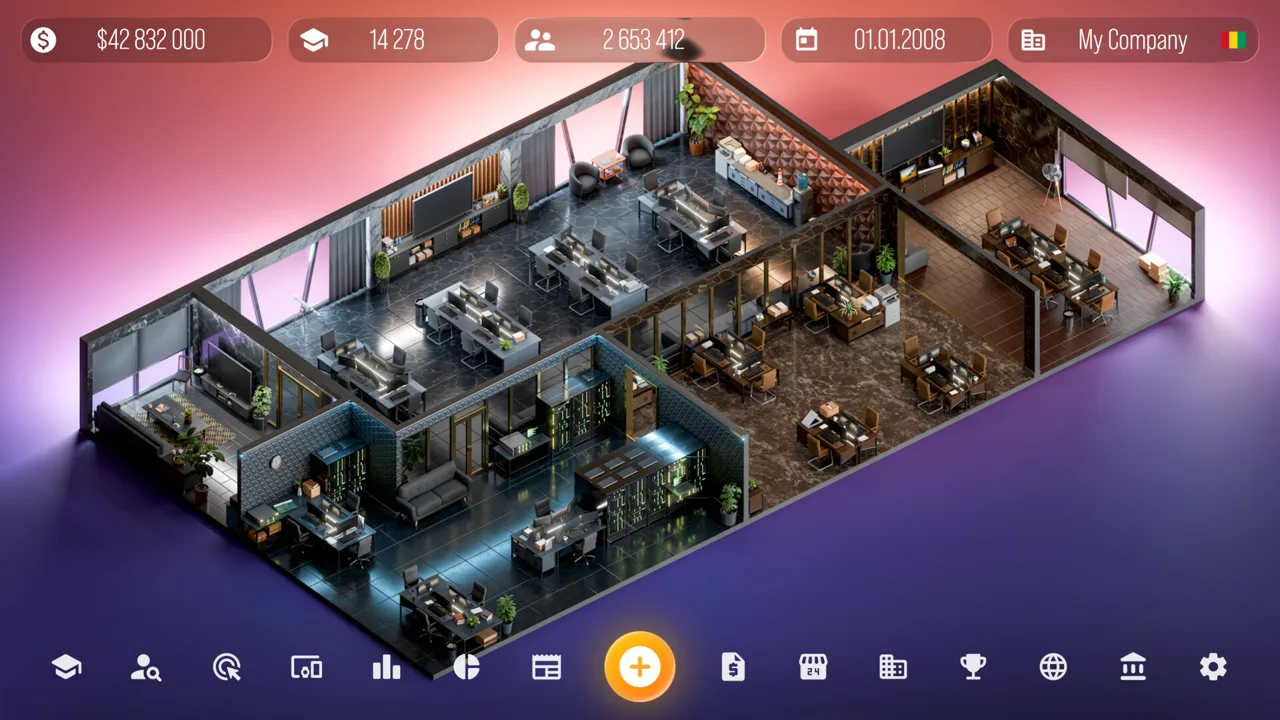 Image: Steam / Roastery Games
Version 1.1 introduced save error codes. If saving produces a code, copy it exactly, including any letters or punctuation. Pair it with the action you were taking, such as saving after editing a device or loading a company.
The first post-launch update added autosave every 90 in-game days. That interval follows the game’s calendar, rather than real-world minutes. Avoid assuming that leaving the game open for a particular amount of time guarantees an autosave.
For a useful saving check, keep the sequence simple:
- Note the device name, text, or OS design before saving.
- Save your progress.
- Load the save and compare the affected detail.
- For a restart-related problem, compare the design again after restarting.
- Record any error code and the point where the result changes.
Version 1.1 fixed device names and text displaying incorrectly after saving or loading. Version 1.3 also addressed incorrect text appearing on devices. Describe exactly where the text appears rather than reporting only that “saving is broken.”
For custom operating systems, distinguish between a reset immediately after restarting and a reset during another action. The updates address both restart-related and unexpected design resets, so that distinction makes a recurring issue easier to explain.
Keep display symptoms separate from progress symptoms, too. Incorrect text on a device and an unsuccessful save require different descriptions, even when you notice both after loading.
Statistics, Revenue, Reviews, and Sandbox Confusion
Some Devices Tycoon bugs affect the numbers and feedback you use to manage your company. That matters when you’re checking whether a product launch helped sales, whether your fan count changed, or whether an operating system has users.
 Image: Steam / Roastery Games
Updates 1.1 and 1.2 addressed several specific problems:
| Symptom | Update | Change |
|---|---|---|
| Rankings, statistics, or company fans fail to update correctly | 1.1 | Corrected updating behavior |
A value displays a long decimal, such as 65.0999999 | 1.2 | Corrected floating-point number display |
Private OS statistics show NaN% with zero users | 1.2 | Corrected that zero-user display case |
| Earbud reviews incorrectly claim indicators are missing | 1.2 | Corrected the inaccurate review |
| “My OS” licensing contains untranslated Russian text | 1.2 | Corrected the untranslated text |
| Countries appear incorrectly on the map | 1.2 | Corrected the map displays |
If earbud feedback complains about missing indicators, update before redesigning the product solely in response to that complaint. The inaccurate review was specifically addressed in version 1.2.
For financial questions, open the company statistics and examine the income and expense breakdown. Version 1.2 expanded those details, and version 1.3 added further financial information. Compare the relevant categories when investigating a balance change.
Also account for balance adjustments. Version 1.1 increased app revenue and slightly improved GPU profitability. Version 1.2 slightly reduced follower growth in Devicesgram. Those changes affect expectations without representing a malfunction.
Sandbox features have changed as well. The first post-launch update added unlimited money, while version 1.1 made Sandbox Mode available from the start and added company fan editing. Version 1.3 added customization of the Devicesgram follower count.
Keep company fans and Devicesgram followers separate when checking a value. They are different customization options introduced in different updates.
Sandbox Mode also gained Employees Are Always Happy and category-level Research All buttons in version 1.2. Check those options when setting up an experimental company so your test matches the conditions you intend.
Device Editor Bugs and Useful Reproduction Checks
The device editor gives you plenty to customize, which makes a misplaced object or a resetting option especially distracting. Several editor-related Devices Tycoon bugs have precise fixes, so identify the affected object before rebuilding the model.
| Editor or device problem | Update | Fix |
|---|---|---|
| Settings reset when switching Budget, Standard, and Flagship | 1.1 | Device settings persist between those selections |
| Cameras can move outside the editor | 1.1 | Corrected camera movement outside the editor |
| GPU lighting looks incorrect in “My Devices” | 1.2 | Corrected the lighting display |
| Voice assistant effect appears in a screen corner | 1.3 | Positioned the effect next to the earbuds |
| Some devices are missing from marketing selection | 1.3 | Corrected the selection list |
| The 3.5 mm headphone jack adapter is positioned incorrectly | 1.3 | Corrected its position in the smartphone editor |
Version 1.3 also fixed device category tooltips appearing in Russian regardless of the selected language. If the problem concerns a tooltip, name the category and your selected language when reporting it.
For settings that appear to reset, note the device category and the exact option you changed. Then record whether the reset follows a tier switch, a save and load, or a restart. These actions overlap with different fixes, so avoid combining them into one test.
Use the ability to copy settings from previous device models, added in version 1.1, when carrying a design forward. Before copying, note the settings involved in your test so you can compare the result clearly.
When a problem persists, build a short report around the action that triggers it:
- Version: The game version you are running.
- Affected feature: The editor, custom OS, marketing list, statistics, or display mode.
- Steps: The shortest sequence that reproduces the issue.
- Expected result: What you intended the action to do.
- Actual result: The visible error, reset, missing item, or incorrect value.
- Evidence: A screenshot, exact error code, or before-and-after comparison.
For Devices Tycoon bugs involving fullscreen, add your display hardware and the workarounds you tried. For editor problems, include the device type and affected component. Specific details make the report useful without requiring a long account of your entire company’s history.
FAQ
What should I try first for Devices Tycoon bugs?
Update the Windows Steam version before repeating the problem. Updates 1.1 through 1.3 address saving text, OS design resets, statistics, reviews, localization, and editor behavior. Then reproduce the affected action separately.
How do I fix a black screen in fullscreen?
Try Alt+Tab twice after entering fullscreen, or switch to Windowed mode through Settings → Video. On NVIDIA systems, test Fixed Refresh for the game in NVIDIA Control Panel. If the problem persists, continue with the display troubleshooting steps above.
How often does Devices Tycoon autosave?
Autosave runs every 90 in-game days, a feature added in the first post-launch update. Version 1.1 also introduced save error codes to help identify saving problems.
Which update fixes custom OS designs resetting?
Version 1.1 addressed OS designs resetting after restarting the game. Version 1.3 addressed another issue where custom OS design settings could reset unexpectedly. Update through 1.3 before repeating your design test.
Continue with
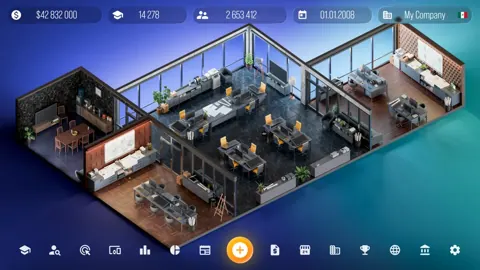 Devices Tycoon Perks: Character Choices and ProgressionLearn how Devices Tycoon perks work, shape your starting character, and unlock permanent bonuses across five groups. Plan your company's development path.
More in Features
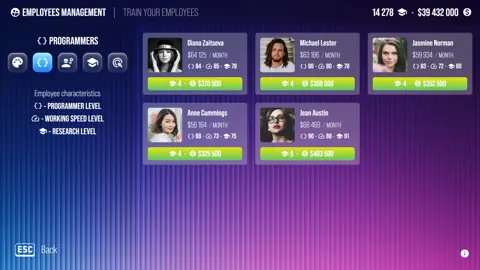
Devices Tycoon Sandbox: Unlimited Money and Features
Explore Devices Tycoon sandbox with unlimited money, Research All buttons, happy employees, and fan controls. See what each Steam update adds to your game.
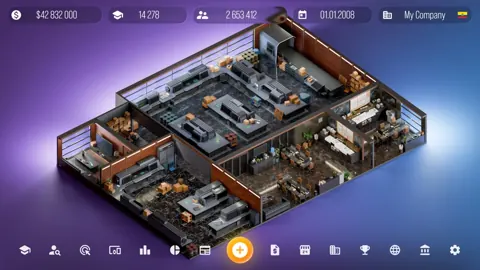
Devices Tycoon Trailer: Official Videos and Features
Watch the Devices Tycoon trailer on Steam, explore device design and company management, and catch up on Sandbox Mode features added after the PC launch.
Join the community
Game links and player communities: